


Creating a Seamless Multiple Date Select Booking System on Your Wix Website

Multiple Date Select Booking System
Booking systems are essential for service providers and rental businesses that rely on date-based reservations. Yet, many Wix users find themselves limited by standard booking apps that do not support flexible date ranges or multiple-day bookings. Building a custom multiple date select booking system with Wix Velo lets you overcome these restrictions and offer your customers a smooth, professional experience.
This guide walks you through creating a booking form that allows users to select a start and end date, calculates the duration automatically, and integrates price calculation. You will learn how to use Wix’s Date Picker elements and JavaScript to build a reliable, user-friendly booking system tailored to your needs.


Why Build a Custom Multiple Date Booking System?
Many Wix users rely on pre-built booking apps that handle single-day appointments well but struggle with multi-day bookings. These apps often lack flexibility in date selection, pricing based on duration, or validation to prevent booking errors.
Creating a custom system with Velo gives you control over:
Date range selection: Let customers pick both start and end dates.
Duration calculation: Automatically compute the number of days or nights.
Error prevention: Block invalid date ranges like an end date before the start date.
Dynamic pricing: Calculate total cost based on the selected duration.
Seamless user experience: Provide instant feedback and clear information.
This approach transforms your Wix site into a powerful booking platform suitable for rentals, accommodations, events, or any service requiring multiple-day reservations.
Setting Up the Custom Date Select Booking Form
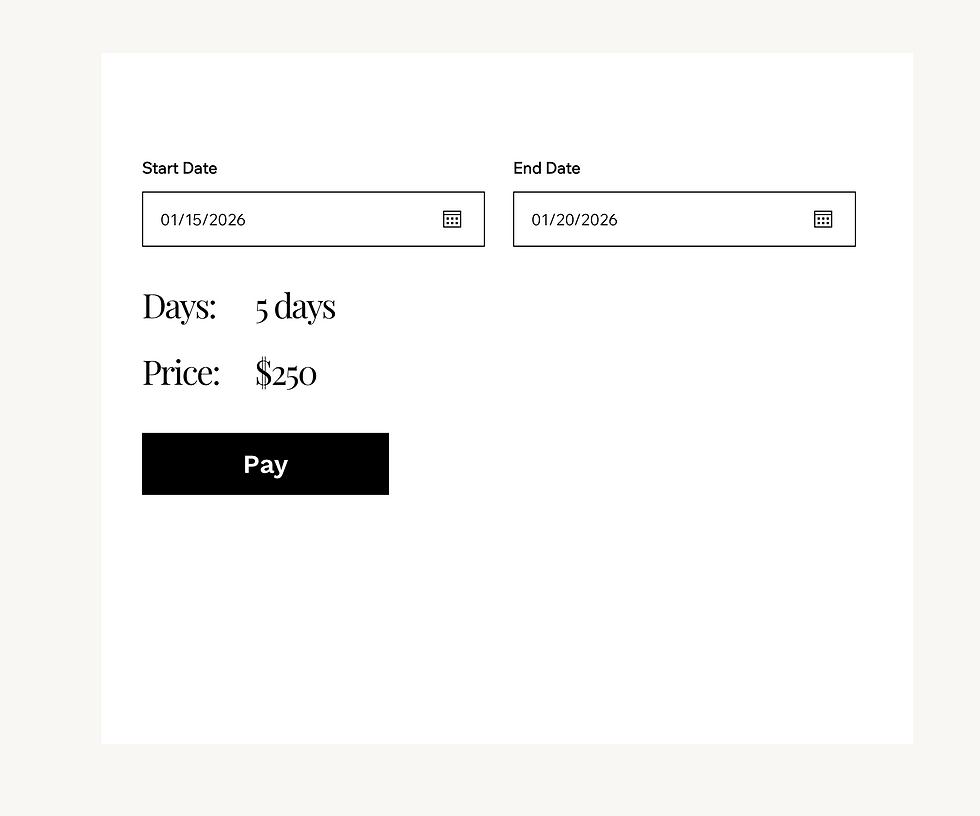
The foundation of your booking system is the date select form. Instead of a simple contact form, use Wix’s Date Picker elements to create interactive inputs.
Key Elements to Add
Start Date Picker (`#startDatePicker`): Allows users to select the beginning of their booking.
End Date Picker (`#endDatePicker`): Lets users choose the end date.
Days Text Field (`#daysText`): Displays the calculated number of days or nights.
Price Display (optional): Shows the total price based on duration.
How It Works
When a user selects a start date, the system waits for the end date input. Once both dates are chosen, the form calculates the difference in days and updates the display. This interaction is the core of your booking logic.

Custom date select booking form with start and end date pickers
Implementing Multiple Days Booking Functionality with JavaScript
Handling multiple-day bookings requires logic to calculate the duration and validate user input. Wix Velo lets you add JavaScript code directly to your page to manage this.
Core Logic Explained
Retrieve Dates: Get the values from the start and end date pickers.
Validate Dates: Ensure both dates are selected and the end date is after the start date.
Calculate Duration: Find the number of days between the two dates.
Update UI: Display the duration in the `#daysText` field.
Calculate Price: Use the duration to compute the total cost.
Sample Code Snippet
```javascript
// Calculate the difference between dates and update booking info
function updateBooking() {
const start = $w("#startDatePicker").value;
const end = $w("#endDatePicker").value;
if (start && end && end > start) {
const timeDiff = Math.abs(end.getTime() - start.getTime());
const diffDays = Math.ceil(timeDiff / (1000 3600 24));
$w("#daysText").text = `${diffDays} Day(s)`;
calculatePrice(diffDays);
} else {
$w("#daysText").text = "Please select valid dates";
}
}
//
Example price calculation based on days
function calculatePrice(days) {
const pricePerDay = 100; // Set your price per day here
const totalPrice = days * pricePerDay;
$w("#priceText").text = `$${totalPrice}`;
}
// Event listeners for date pickers
$w.onReady(() => {
$w("#startDatePicker").onChange(updateBooking);
$w("#endDatePicker").onChange(updateBooking);
});
```
Explanation
The `updateBooking` function runs whenever a date changes.
It checks if both dates are valid and calculates the difference.
The number of days is displayed, and the price is updated accordingly.
If dates are invalid, a message prompts the user to correct the input.
Enhancing User Experience and Preventing Errors
A smooth booking process reduces customer frustration and increases conversions. Here are some tips to improve your system:
Disable past dates: Prevent users from selecting dates before today.
Limit maximum booking duration: Set a cap on how far apart the start and end dates can be.
Provide clear error messages: Inform users why their selection is invalid.
Show real-time price updates: Let customers see how their choices affect the cost immediately.
Add confirmation steps: Summarize booking details before final submission.
Example: Disabling Past Dates
```javascript
$w.onReady(() => {
const today = new Date();
$w("#startDatePicker").minDate = today;
$w("#endDatePicker").minDate = today;
});
```
This code ensures users cannot pick dates in the past, reducing invalid bookings.
Integrating Secure Payments and Finalizing Bookings
Once the booking form captures dates and calculates prices, the next step is to accept payments securely.
Options for Payment Integration
Wix Payments: Use Wix’s built-in payment system for easy setup.
Third-party gateways: Integrate Stripe, PayPal, or others via Velo APIs.
Custom payment forms: Build tailored payment flows for specific needs.
Make sure to:
Validate payment details before processing.
Confirm booking only after successful payment.
Send confirmation emails with booking details.
Testing and Launching Your Booking System
Before going live, thoroughly test your booking system:
Select various date ranges, including edge cases.
Try invalid inputs to check error handling.
Verify price calculations match your pricing rules.
Test payment processing end-to-end.
Ask friends or colleagues to test usability.
After testing, publish your site and monitor bookings to catch any issues early.
If you need any assist feel free to book a free consultation.

Comments